
















































































Quick answer: Most laptop scratches can't truly be removed: polishing won't bring back paint or anodized color and can ruin soft-touch and screen coatings. To hide scratches, cover them with an opaque or textured skin cut for your model. To prevent new ones, use a skin from day one, a sleeve in your bag, and keep keys and watch bands away.
The first scratch on a laptop lid usually comes from the bag, not a drop: a zipper, a charger brick, keys in the same pocket. After that come desk grit, watch bands on the palm rest and the occasional slide across a café table.
This guide covers which scratches can be fixed on which surface, what you should never put on a laptop screen, how to hide marks you already have, and how to stop new ones.
Can laptop scratches be removed?
It depends on the surface, and in most cases the honest answer is no. Very light scuffs on bare hard plastic can sometimes be softened; scratches through paint, coatings or anodized color can only be covered.
| Surface | Common on | Can you remove scratches? | What works instead |
|---|---|---|---|
| Hard bare plastic | Budget and gaming laptops, bottom panels | Light scuffs sometimes, with a plastic polish on a soft cloth (test a hidden spot first) | Cover deeper scratches with a skin |
| Painted or coated plastic or metal | Many mid-range lids | No. Polishing removes more paint; touch-up paint rarely matches | Cover with an opaque skin |
| Soft-touch (rubbery) coating | Business and ultrabook lids, palm rests | No. Rubbing leaves shiny patches | Cover with a skin |
| Anodized aluminum | MacBooks, premium Windows laptops | No. The color is in the surface layer and can't be polished back | Cover with a skin |
| Screen | All laptops | No. Deep screen scratches mean a new panel | Prevent; see the screen section below |
If you are unsure what your lid is made of, treat it as coated and don't polish it.
How do I hide scratches on my laptop lid?
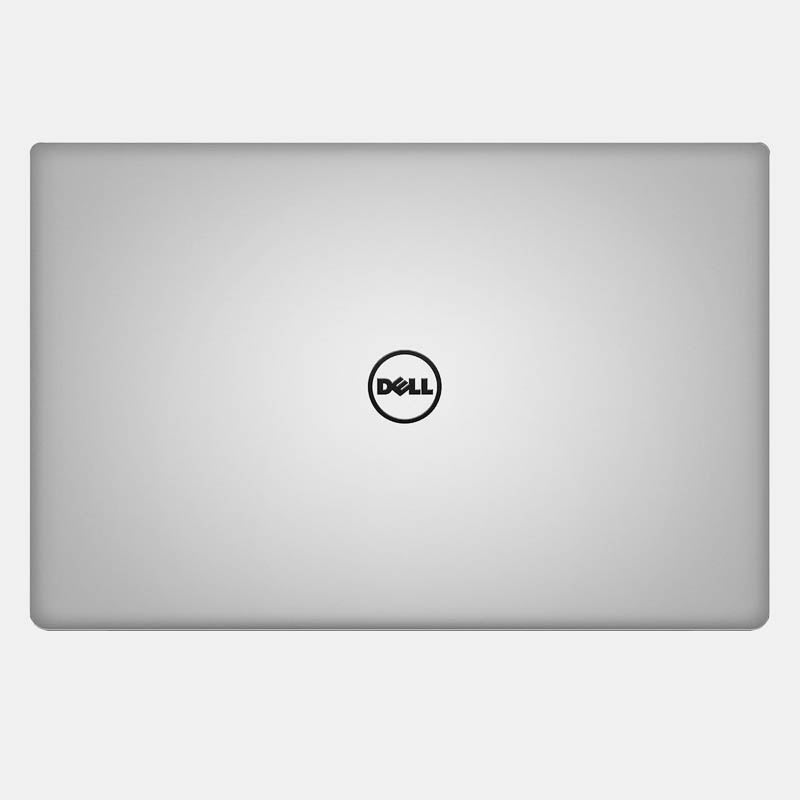
Cover them with a skin cut for your exact model, in an opaque or textured finish. Stickers hide one mark at a time; a full-panel skin hides all of them and protects the whole lid.
- Pick an opaque or textured finish. Carbon fiber, leather, walnut, camo and solid colors hide marks underneath. A transparent skin protects against new scratches but leaves existing ones visible.
- Clean the surface first. Wipe away dust and grease and let it dry so the skin sits flat.
- Deep gouges may still show. A skin covers the color of a scratch, but a deep gouge or a dent can show through as a texture under the vinyl. A busy texture hides this better than a smooth, solid color.
-
Get the model right. A skin cut for the exact model lines up with the logo, hinge, vents and ports. On Windows, open Settings → System → About, or press Windows + R, type
msinfo32and read System Model.
How do I protect my laptop from scratches?
Put a layer on the surfaces that take wear, and change the habits that cause most scratches. A skin from day one plus a sleeve in your bag covers almost every everyday cause.
| Where scratches come from | What to change |
|---|---|
| Keys, chargers and bottles in the same bag compartment | Use a sleeve or a separate laptop compartment |
| Grit on desks, café tables, airport trays | Lift the laptop instead of sliding it; a skin on the bottom takes the rest |
| Watch bands, bracelets and rings on the palm rest | Take metal bands off for long typing sessions, or cover the palm rest if your model offers it |
| Stacking things on the closed lid | Keep the lid clear; heavy items also press the keys into the screen |
| Cleaning with paper towels or rough cloths | Use a soft, lint-free cloth |
What about scratches on the laptop screen?
Screen scratches can't be polished out, so prevention is everything. Never use toothpaste, baking soda or "scratch remover" pens on a screen; they can strip anti-glare and anti-reflective coatings and make the area worse.
Many "scratches" on a screen are actually marks from the keyboard: when the lid is closed, the keys sit very close to the display and can leave a print of oil, or, over time, wear the coating. Keep the keyboard clean, don't close the lid on pens, cables or cloths, and don't carry the laptop where something presses on the lid. Check your laptop maker's cleaning instructions before using anything other than a soft cloth and water.
Is a skin, a hard case or a sleeve better against scratches?
For everyday scratches a skin is the most practical choice, especially on Windows laptops, where fitted hard cases exist for only a few models. A sleeve is the better choice against knocks in a bag. Many people use both.
| Skin | Hard shell case | Sleeve | |
|---|---|---|---|
| Protects while you use the laptop | Yes | Yes | No, only in the bag |
| Available for most Windows models | Yes, cut per model | Rarely; most are made for MacBooks | Yes, by size |
| Hides existing scratches | Yes, with an opaque or textured finish | Only if the shell is opaque | No |
| Bulk | Very little | Some | Separate item |
| Helps against knocks and dents | No | A little | Yes, if padded |
| Vents and ports | Cut around them | Depends on the design | Not affected |
Which skin finish is best for scratches?
For hiding marks, a textured finish; for keeping the laptop's original look, Matte Transparent Guard. Both protect the surface from new scratches.
Capes Matte Transparent Guard is made from 3M 180C vinyl with an Orafol matte lamination, so the laptop's own color shows through with a matte finish. Textured finishes such as carbon fiber, leather and walnut change the look and are the better choice when there are already marks to cover. Skins are designed to remove cleanly, so you can change your mind later or take the skin off before you sell the laptop.
Coverage depends on the model: lid only (Essential), lid, bottom and sides (Pro), or up to the palm rest (Max). The options for your laptop are listed on its product page.
Find the skin for your laptop
Browse all laptop skins or go straight to your brand: Dell, HP, Lenovo, Asus, Acer, MSI, Samsung, Microsoft or MacBook. Model not listed? Tell us your model. Orders and delivery questions are covered in our FAQ. In India? Shop on capesindia.com.
FAQ
Can scratches on a laptop be fixed?
Rarely. Light scuffs on bare hard plastic can sometimes be softened with a plastic polish. Scratches through paint, soft-touch coatings or anodized aluminum can't be polished back, but a skin can cover them.
Do laptop skins hide scratches?
Opaque and textured skins hide scratches underneath. Transparent skins protect against new scratches but leave existing ones visible. Very deep gouges or dents can still show as a texture.
How do I protect my laptop from scratches in a backpack?
Use a sleeve or a separate laptop compartment, keep keys and chargers in another pocket, and put a skin on the lid and bottom to take the wear.
Can I use toothpaste to remove scratches from a laptop screen?
No. Toothpaste and other abrasives can strip the screen's anti-glare or anti-reflective coating and make the area look worse. Deep screen scratches need a new panel.
Does a skin make a laptop overheat?
Capes laptop skins are cut around the vents and ports for each model, so airflow openings stay uncovered.
Written by Capes. Last checked: 9 October 2026.

Leave a comment
This site is protected by hCaptcha and the hCaptcha Privacy Policy and Terms of Service apply.